Cryptonose 3

Cryptonose 3 is a tool useful in Cryptocurrency trading
| Home | Downloads | Manual | Contact |
Manual
I’ve tried to make Cryptonose 3 easy to use, but in case I’ve failed, here is the manual ;)
Contents: First run · Main window · Pairs, search and pins · How alerts work · Notification · Settings · Keyboard shortcuts · Exchange notes
First run
After first run, you will see main application window with no exchanges and the alerts panel on the right. Choose an exchange from the list in the middle of the window to start tracking price changes. To add more exchanges later, click on + Exchange above the table.
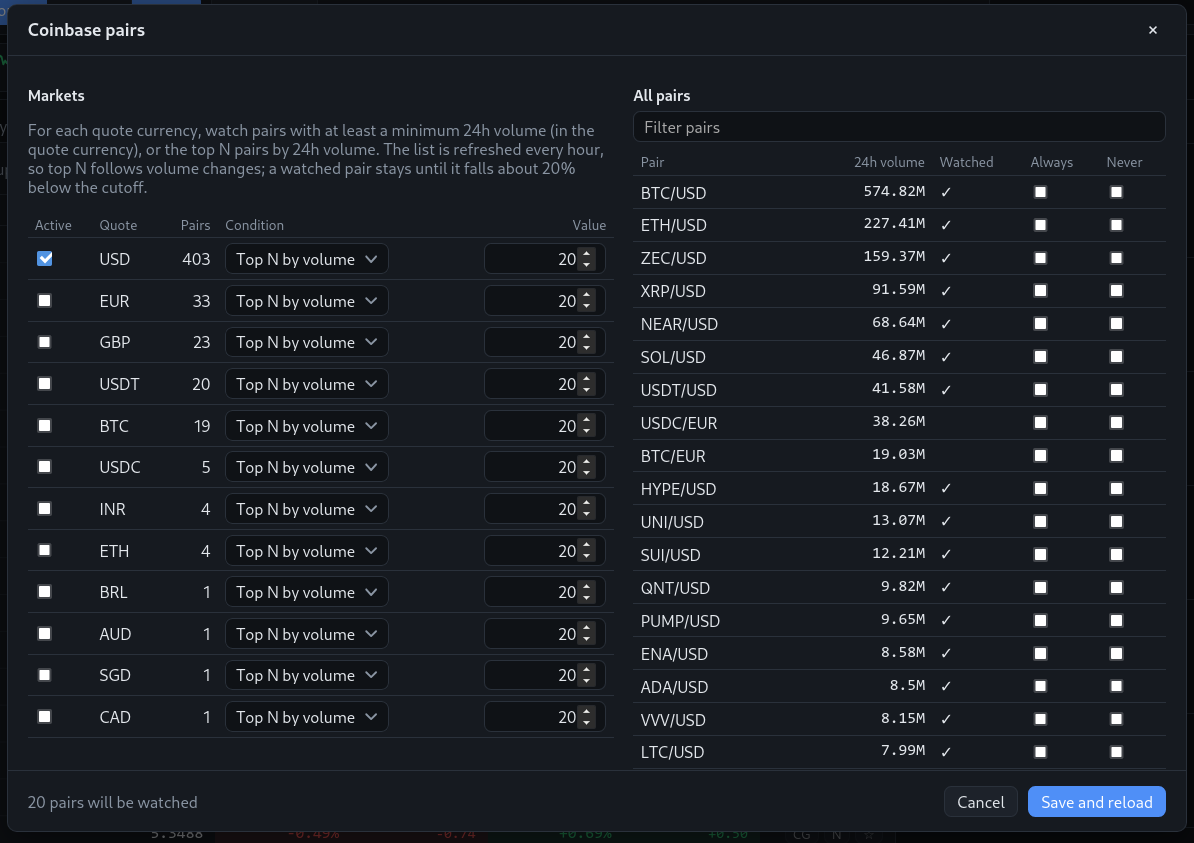
Each exchange starts with a default set of currency pairs (the top pairs by 24h volume of its main markets), so you will see prices and alerts right away. To change the pairs, click Pairs in the exchange tab. There are two sections in pairs selection window:
- Markets. Most of the exchanges provide markets with more than one quote currency. Example of BTC markets (BTC as quote currency): ETH/BTC, LTC/BTC, XMR/BTC. Mark a market as Active and choose a Condition:
- Top N by volume - watch the N pairs of this market with the highest 24h volume,
- Min 24h volume - watch all pairs with at least this 24h volume (in the quote currency).
- All pairs. All pairs of the exchange, sorted by 24h volume, with a filter field. The Watched column shows what will be watched with current settings. Use Always to watch a pair regardless of the markets conditions, and Never to exclude a pair (for example a stablecoin pair).
The number of pairs that will be watched is shown at the bottom of the window. Click Save and reload to apply.
The list of pairs is refreshed every hour, so Top N follows volume changes. To avoid constant changes, a pair that is already watched stays until it falls about 20% below the cutoff (for example below the 24th place for top 20).
Note that choosing a lot of currency pairs will cause longer initialization (Cryptonose 3 needs to get chart data from the exchange). Some exchanges have strict limits for downloading chart data - getting data for one currency pair takes about 2 seconds on Kraken and about 4 seconds on Bitfinex. You can see the progress in the exchange tab.
Very low volume (so with low liquidity) currency pairs could trigger a lot of undesirable price alerts. You should choose currency pairs carefully.
Main window
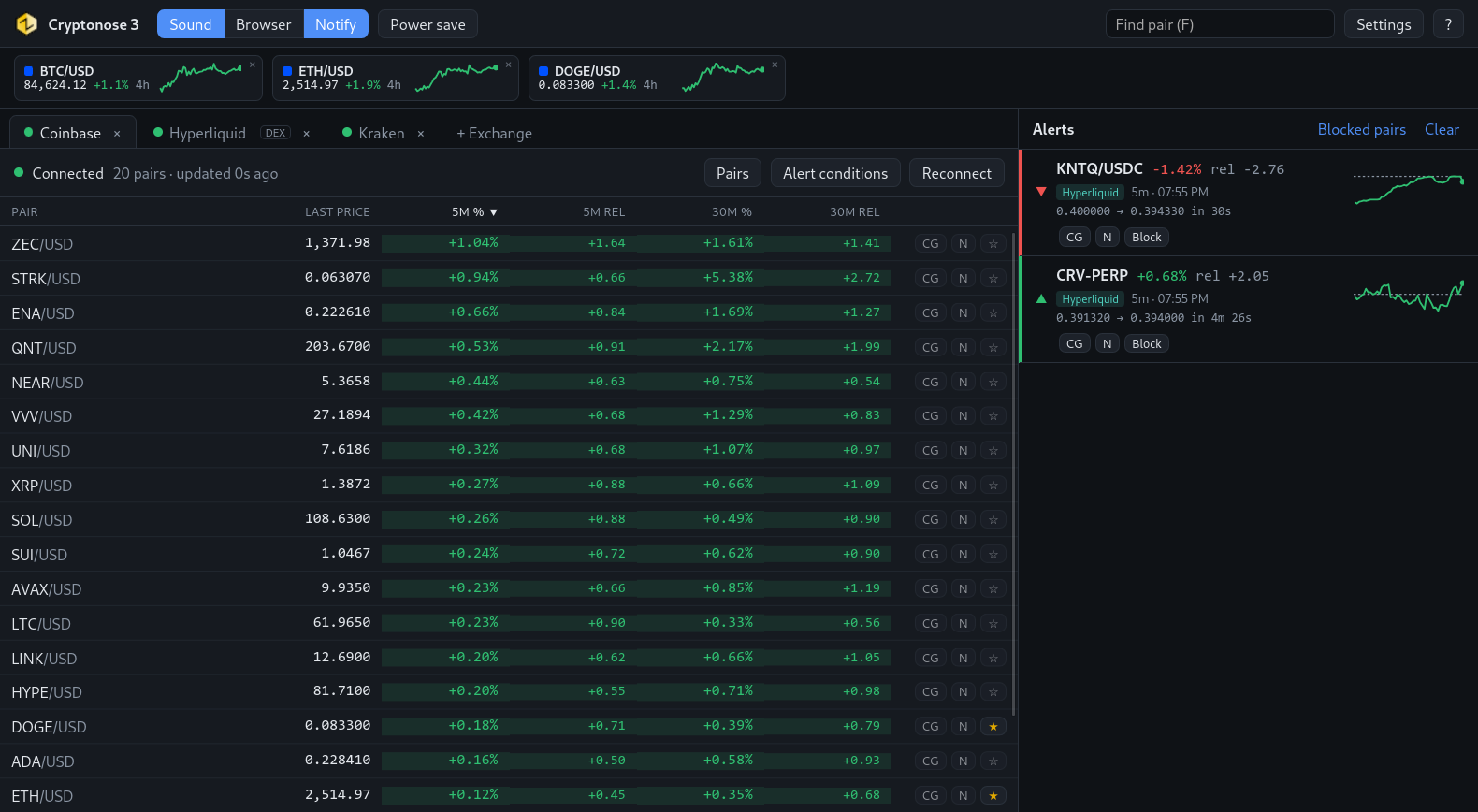
- Header - global options, search and settings:
- Sound - play a sound when price alert occurs
- Browser - run web browser with adequate market on exchange website
- Notify - show desktop notification with alert details
- Power save - hide tables and pinned tickers - saving CPU and battery, especially when prices are very volatile. Alerts still work.
- Find pair (F) - quick search for a currency pair in all open exchanges, see search
- Settings and ? (help, keyboard shortcuts)
- Pinned tickers - a bar with real-time prices of pinned pairs, see pinned tickers.
- Exchange tabs - every exchange runs in separate tab. Near the exchange name there’s a little dot showing connection status: green - connected, yellow - connecting, reconnecting or no updates, red - error or no pairs. DEX exchanges are marked with a DEX label. Close a tab with ×.
- Alerts panel - recent price alerts from all exchanges, on the right side of the window (below the tables in a narrow window).
Alerts panel
The panel shows up to 100 latest alerts, newest at the top. Clear removes all of them (after a confirmation), Blocked pairs shows the alert blocks.
Price alert
- Arrow - green up arrow for a price rise, red down arrow for a drop.
- Pair - currency pair name in format base/quote (perpetuals on Hyperliquid: base-PERP).
- Price change - percent change in the price in given period, and rel - relative price change.
- Exchange - colored label with the exchange name.
- Period - 5m or 30m, and the time of the alert.
- Prices - the price before and after the change, and the real duration of the change. Example: if price alert is triggered by price drop from 0.15 to 0.14 within 2 minutes 45 seconds, you’ll see 0.150000 → 0.140000 in 2m 45s.
- Chart - minimalistic graph showing short (4 hours) price history, with a dashed line at the price before the change. Just to illustrate a recent trend.
- Buttons - CG and N show coin info and news, Block blocks alerts for the pair.
Click on the alert to open the market on the exchange website.
Blocking alerts
You can block subsequent alerts for currency pairs using Block button on the alert. Blocked means that you will not see or hear any price alert on given currency pair. You can block alerts for 1 hour, 4 hours, 12 hours, 1 day or permanently. All blocks are kept when you close Cryptonose 3 and run it again.
You can see and remove alert blocks by clicking on Blocked pairs in the alerts panel.
Exchange tab
- Toolbar - connection status (with a message when something is wrong), progress of loading price history, number of pairs and time of the last update. Buttons:
- Pairs - pairs selection,
- Alert conditions - alert conditions for this exchange,
- Reconnect - reload pairs and reconnect.
- Table - columns: pair, last price, 5m and 30m percent change, 5m and 30m relative change (there was not enough place for the word “change” ;)), and buttons: CG, N (coin info and news) and ☆ to pin the pair. Click on a column name to sort; the table is re-sorted every few seconds so rows don’t jump all the time. You can open web browser with market web page by double-clicking on a row. You can also select a row with arrow keys and press Enter to open the market or Space to pin it.
Pairs, search and pins
Search for a currency pair
The Find pair (F) field is always visible at the top of the Cryptonose 3 window. You can click on it or just press F key to start typing, to find desired currency pair in all open exchanges. Results show the same columns as exchange tables, with a colored mark of the exchange. Use arrow keys to select a pair and press Enter to go to its page, or double-click it.
When you’ve finished your search, press ESC or clear the field.
Pinned tickers
In exchange tables and search results you can see a ☆ button. If you pin currency pair, you will see a small box with real-time price, price change in last 4 hours and mini-chart - that’s a pinned ticker. Tickers will appear in the same order as their currency pairs were pinned. Pinned pairs are always watched, even if they don’t meet pairs conditions. Double-click a ticker to open the market, click × to unpin it.
You can pin up to 10 pairs on open exchanges.
Coin info and news
You can find small CG and N buttons on the alerts panel and in currency pairs tables. They open a window with two tabs:
- Info (CG button) - additional data about coin’s price, market cap, rank and usually a short description, with links to CoinGecko and the coin’s website. All the data are from CoinGecko website. The data are downloaded using coin’s symbol (BTC, ETH, DOGE etc.). If there’s a situation when there are multiple coins with the same symbol (which is not very likely), data for a coin with highest volume will be shown. So keep in mind there’s a minimal chance that data for wrong coin will be shown.
- News (N button) - latest news about a coin from the last 7 days. Headlines come from news sites RSS feeds: CoinDesk, Cointelegraph, Decrypt, The Block and Bitcoin Magazine (you can change the list in settings), and from CoinGecko if you have a paid CoinGecko API key. News are found by the coin name or symbol. For symbols that are also common words (ONE, GAS etc.), only the coin name or $SYMBOL is used. Small coins may have no news.
How alerts work
What is relative price change?
Relative price change is an indicator reflecting price change in given period in comparison to the typical price change in the same time periods in past. The “past” is set to 50 periods. More technically, it’s the price change divided by a weighted average of differences between high and low of past periods (candles) - more recent candles have bigger weight. Candles where the price didn’t move are skipped. To visualize, example values of relative price change:
- around 1 is typical value
- 4 is pretty much - means that probably something interesting is happening with the price
- 8 is very much - almost surely something interesting is happening with the price
What exactly are price changes in Cryptonose 3?
Price change in Cryptonose 3 is based on maximum (positive or negative) change during recent time period (5 minutes or 30 minutes). You should not confuse it with a change between beginning and ending of the period. For example if price 5 minutes ago was 2.0, then it went up to 4.0 and now it dropped slightly to 3.7, 5m price change values will be calculated for biggest rise - from 2.0 to 4.0 - in percents it’s +100%.
Alert conditions
The predefined values should be useful. You may want to try them before considering any changes. Try starting with the Low preset and then switching to the next presets if the alerts are too frequent. Conditions are set for each exchange separately; use Save for all exchanges to use the same values everywhere.
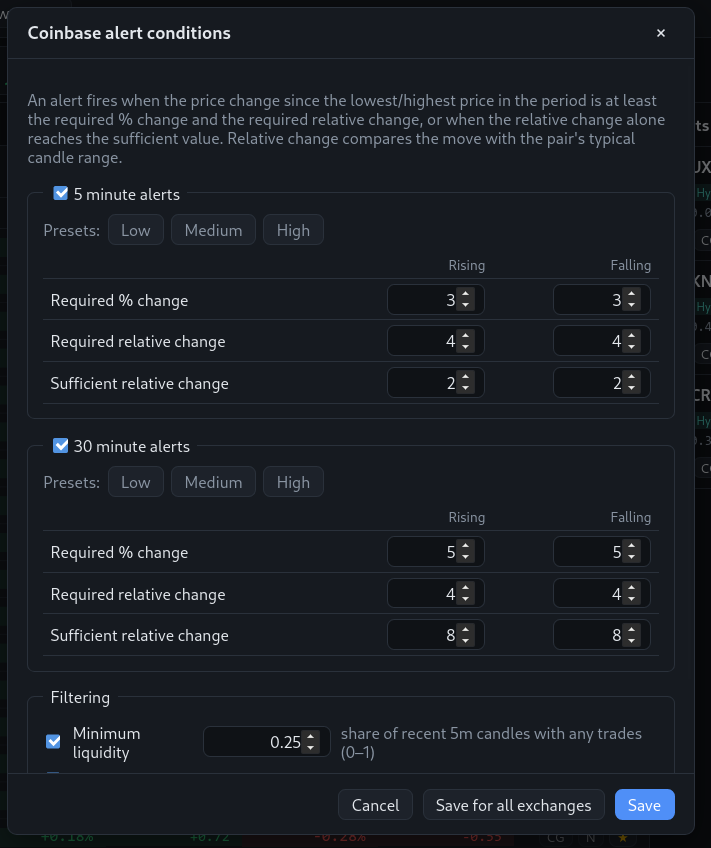
You can enable or disable 5 minute and 30 minute alerts separately. Price alert is triggered by:
- significant percent and relative price changes (Required… fields)
- significant relative change only (Sufficient… fields).
Example
With Required % change 3, Required relative change 4 and Sufficient relative change 8:
- Price rise 3.1%, relative 4.1 will trigger an alert.
- Price drop -3.1%, relative -4.1 will trigger an alert.
- Price rise 3.1%, relative 2.0 will not trigger an alert - relative change is too low.
- Price rise 1.0%, relative 9.3 will trigger the alert - relative change is bigger than sufficient value.
These settings are quite flexible. If you’re only interested in percent changes, you can set the required relative change to 0, and sufficient relative change to a highest possible value, which is 100.
A quick price change (5 minutes or shorter) doesn’t trigger 30 minute alert when 5 minute alerts are enabled, because it’s already reported by a 5 minute alert.
Alert logic settings
- Block repeated alerts for the same pair for 30 minutes. You can use this to make alerts less frequent, but keep in mind that during this time something interesting could happen, and you won’t be notified.
- Still alert when the change is at least 2× the previous alert. For example if you get alert for a significant price rise and after a few seconds the price rises even more, more than 2x than the previous change - you’ll get a second alert.
Minimum liquidity
Liquidity factor is a very simple indicator that could help filter out alerts on currency pairs that are not liquid (and because of that - usually volatile in undesirable way). Liquidity factor is:
(number-of-5m-periods-where-price-changed) / (number-of-5m-periods)
Number of periods is 50, same as for calculating relative change. Alerts on pairs with liquidity factor below the Minimum liquidity value (by default 0.25) are skipped.
To sum up, low value of liquidity factor for given currency pair means that there were recently many periods when price didn’t change.
Notification
Notification shows details of price alert: pair, percent change, period, exchange, relative change, and the prices before and after the change. A green or red icon shows if the price went up or down. Click the Browser button to open the market in web browser (on Windows and MacOS you can also click on the notification).
Cryptonose 3 also notifies you about connection errors: when an exchange can’t be reached, no pairs were found, or no prices arrived for 5 minutes. You can turn it off in settings, or turn on Connection status notifications to be notified about every connection change (connected, reconnecting and errors).
Settings
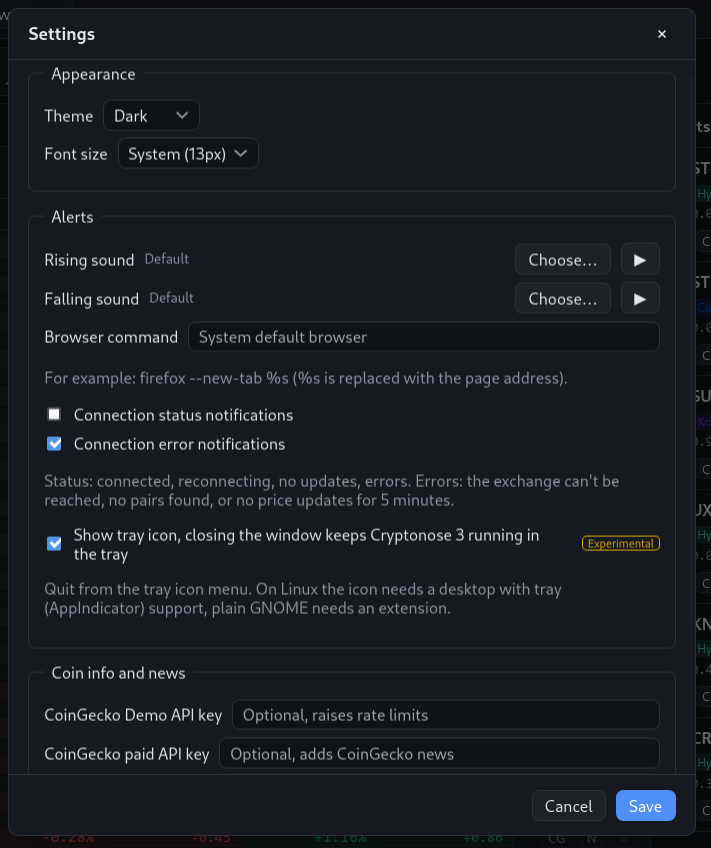
- Appearance - theme (system, dark or light) and font size (system or custom).
- Alerts - custom sounds for rising and falling prices, a browser command (for example
firefox --new-tab %s, where%sis replaced with the page address; system default browser if empty), connection status notifications and connection error notifications, and the experimental tray icon. - Coin info and news - optional CoinGecko API keys (a free Demo key raises CoinGecko limits, a paid key adds CoinGecko news) and the list of news feeds.
Keyboard shortcuts
| Key | Action |
|---|---|
| Ctrl+S | Toggle alert sound |
| Ctrl+B | Toggle opening the browser on alerts |
| Ctrl+N | Toggle alert notifications |
| Ctrl+P | Toggle power save |
| F | Find a pair in all exchanges |
| E | Next exchange tab |
| ↑ ↓ | Move in the table |
| Enter | Open the selected market |
| Space | Pin or unpin the selected pair |
Exchange notes
Hyperliquid
Hyperliquid is a decentralized exchange with its own blockchain. Cryptonose 3 supports its perpetual futures (shown as BTC-PERP etc., market PERP in pairs settings) and spot markets (mostly quoted in USDC). Like on other exchanges, prices come from all trades, streamed in real time.